
Follow these steps to install Git on Windows or Mac and connect to a server.
Overview
Who this is for: anyone who needs Git on their computer or wants to connect to a server.
What you need:
- A Windows 10/11 PC or a Mac
- An internet connection
- Admin rights on your computer
Install Git on Windows
- Go to https://git-scm.com/install/windows and click Click here to download.
- Open the downloaded file. Click Yes when Windows asks for permission.
- Click Next on every screen, then click Install.
- Click Finish.
Install Git on Mac
- Open Terminal (press Command + Space, type Terminal, press Return).
- Type
git --versionand press Return. - When the pop-up appears, click Install, then Agree. If a version number appears instead, Git is already installed.
Check the installation
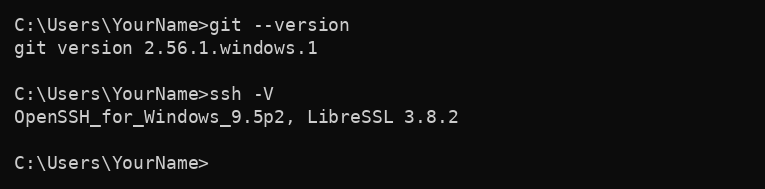
Open Command Prompt (Windows) or Terminal (Mac) and run:
git --version
ssh -V
Both commands should show a version number, like this:
Connect to a server
- Type
ssh username@SERVER_IPand press Enter. - The first time, type yes and press Enter.
- Enter your password and press Enter. Nothing appears on screen while you type; this is normal.
To disconnect, type exit.
|
Problem |
Fix |
|---|---|
|
|
Close Command Prompt, open a new one, and try again. |
|
|
Check the server IP address with your hosting provider. |
|
|
Check your username and password. |
