
Step 1: Open Remote Desktop Connection
On Windows:
- Press Windows Key + R
- Press Enter.
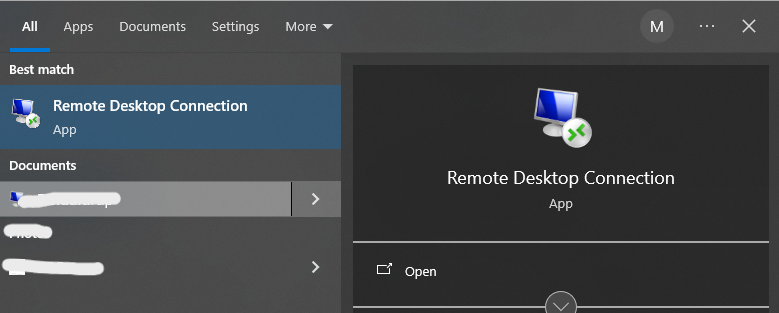
Alternatively:
Search for “Remote Desktop Connection” in the Start Menu and open it.
Step 2: Enter VPS IP Address
Search for “Remote Desktop Connection” in the Start Menu and open it.
Step 2: Enter VPS IP Address
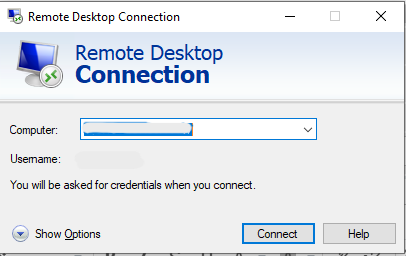
- In the Remote Desktop window, locate the Computer field.
- Enter your VPS IP Address
Example:192.168.1.100If you have a custom RDP port or using our cloud servers then enter post number
Example:192.168.1.100:port
-
Click Connect
Step 3: Enter Login Credentials
When prompted
- Username:
Administrator(or provided username) - Password: (copy/paste provided password)
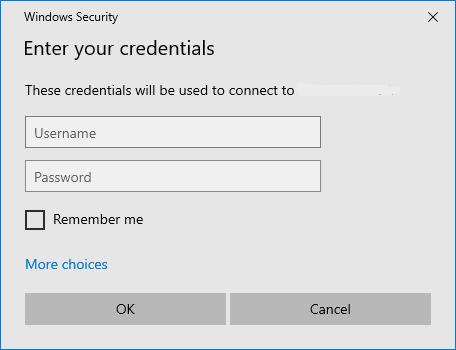
- Click on OK.
Step 4: Accept Security Certificate
You may see a security warning:
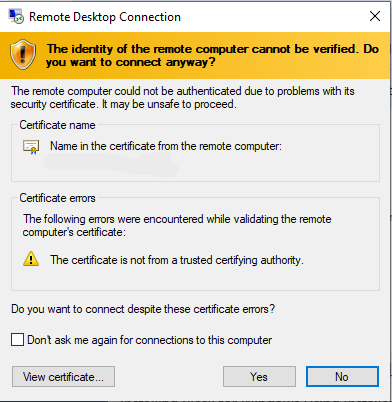
- Click “Yes” or “Continue”
Step 5: Access Your VPS Desktop
After successful login:
- Your VPS desktop will appear
- You now have full access to your Windows Server environment