Step-by-Step: How to Enable Windows Defender

Step 1: Open Windows Security

  1. Click on Start Menu
  2. Search for Windows Security
  3. Click to open it
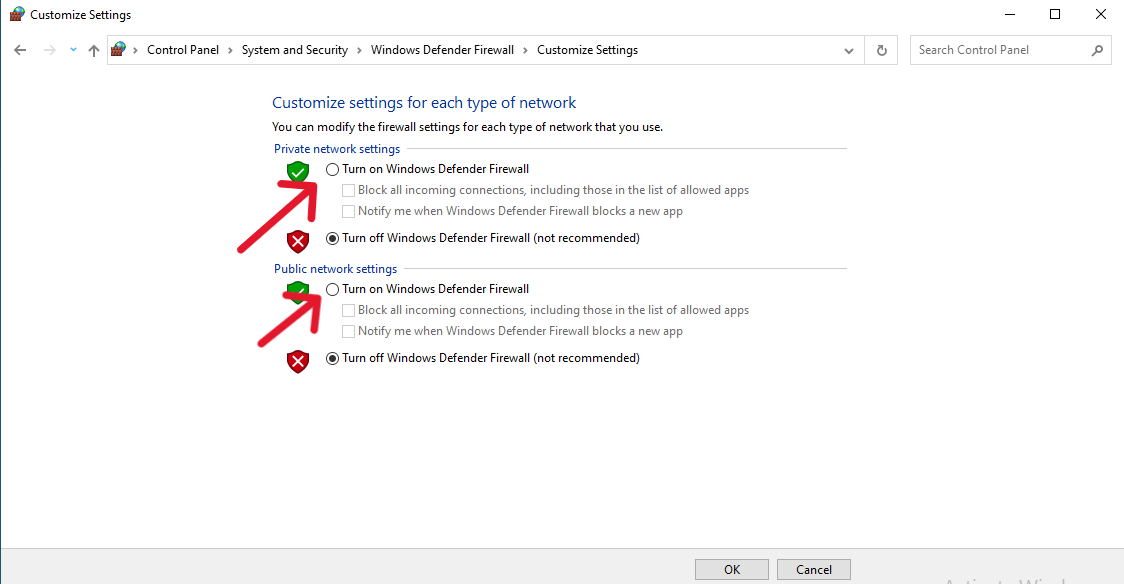
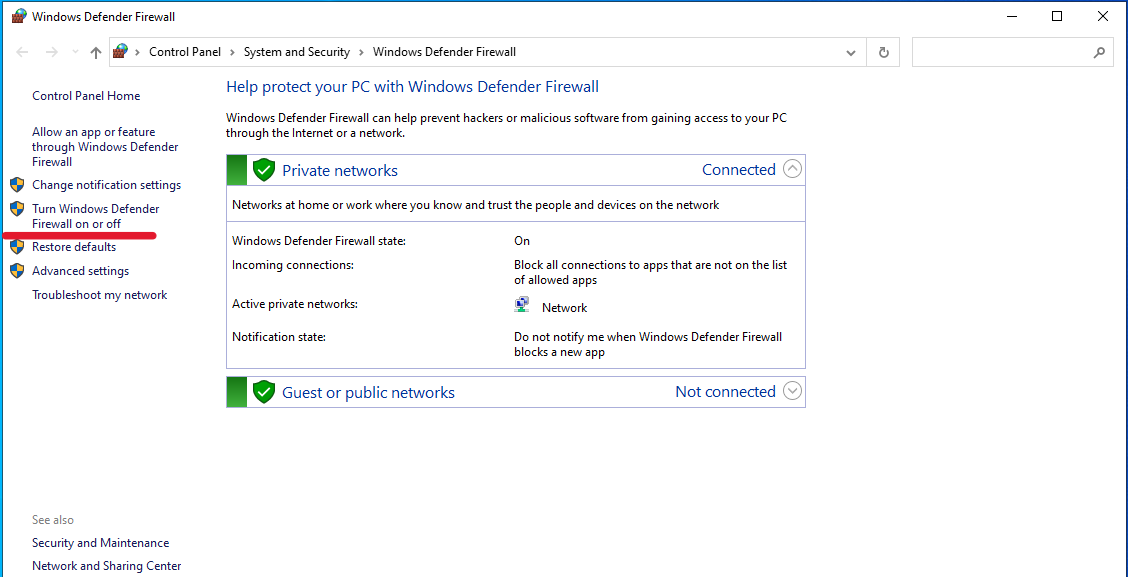
  4. Then click on Turn  Windows Defender Firewall On or Off

Step 2: Turn On Virus & Threat Protection

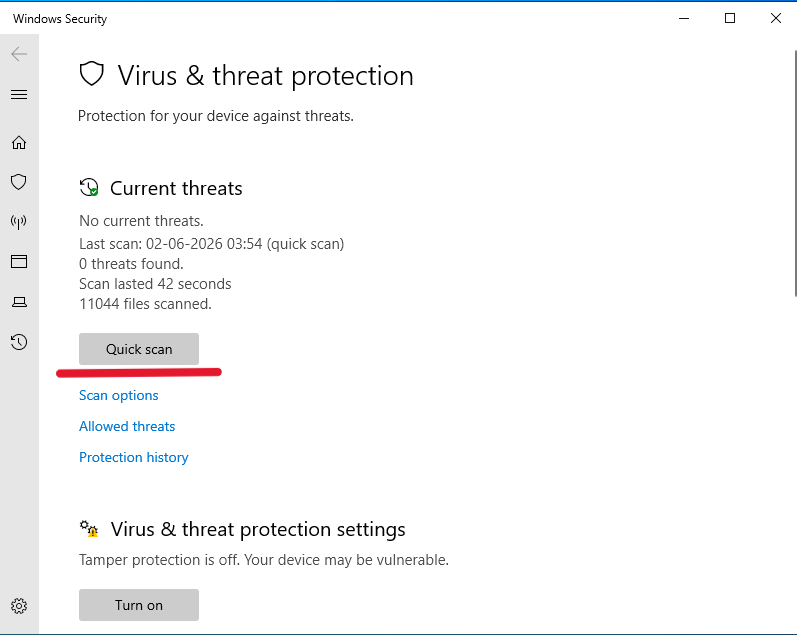
  1. Click on Virus & Threat Protection
  2. Check if protection is ON
  3. If OFF, click Turn On
  4. Then click on OK


Step 3: Enable Real-Time Protection

  1. Click on Start Menu then Search for Virus & Threat Protection
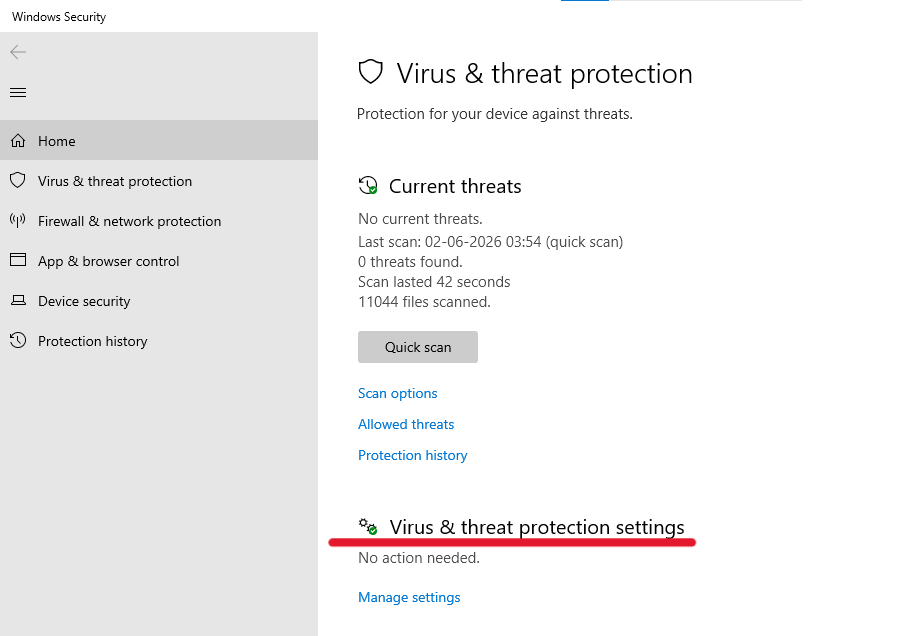
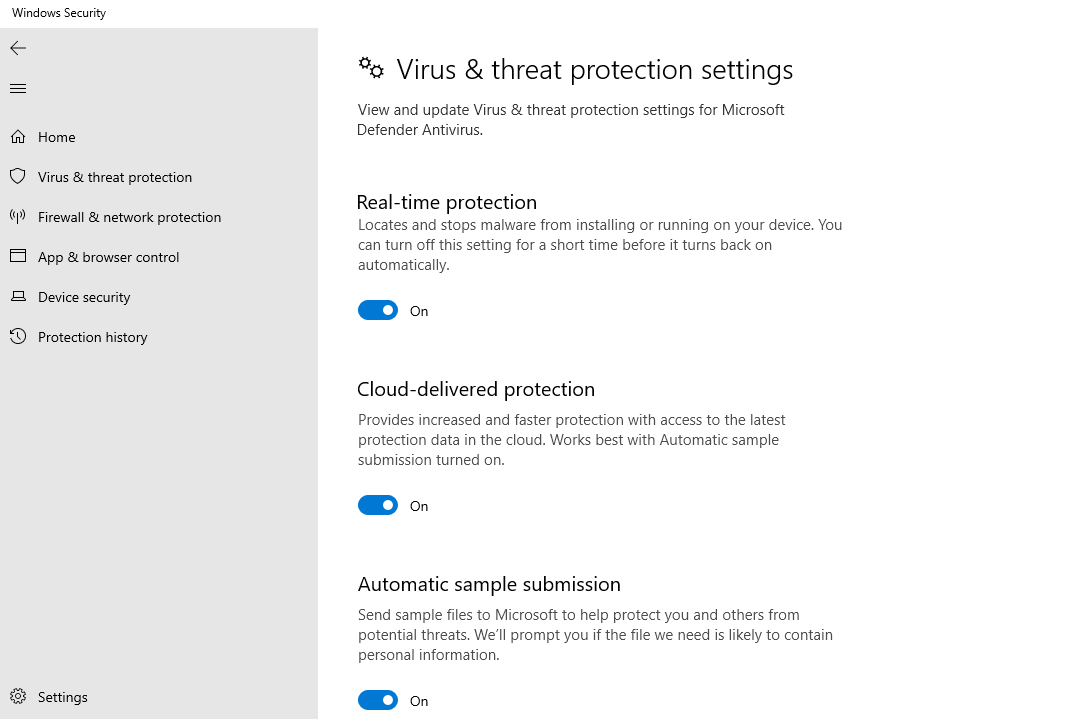
  2. Click on Virus & Threat Protection settings
  3. Click Manage Settings
  4. Enable:
    • Real-time Protection
    • Cloud-delivered Protection
    • Automatic Sample Submission


Step-by-Step: Run a Manual Scan

Running regular scans is important for server health.

Quick Scan

  1. Go to Virus & Threat Protection
  2. Click Quick Scan


Full Scan (Recommended Weekly)

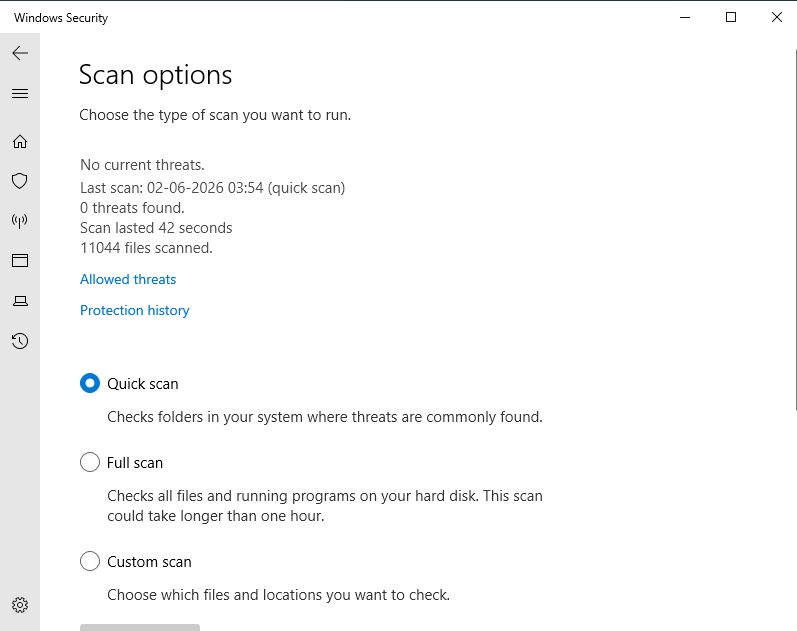
  1. Click Scan Options 

  2. Select Full Scan
  3. Click Scan Now

This checks your entire VPS for hidden threats.

  • 1 användare blev hjälpta av detta svar
Hjälpte svaret dig?

Relaterade artiklar

WINDOWS VPS

Need better speed, performace of you website then choose VPS instaed of shared hosting. In VPS...

How to Install Any Browser on Windows Servers

In this video, we will show you how to install any browser on Windows servers. By the end of...

How to change Date and Time in Windows Servers

This video tutorial will show you how to change the date and time in a Windows Server. By...

My VPS is not working

Step-by-Step Troubleshooting Guide If your VPS is not working or you are unable to connect,...

How to Install DNS and IIS in Windows servers

DNS is a service that helps your computer find the correct IP address when it connects to the...