How to Change RDP Port in Windows Server (Easy Guide)

Step 1 : Open New Port in Windows Firewall (IMPORTANT)

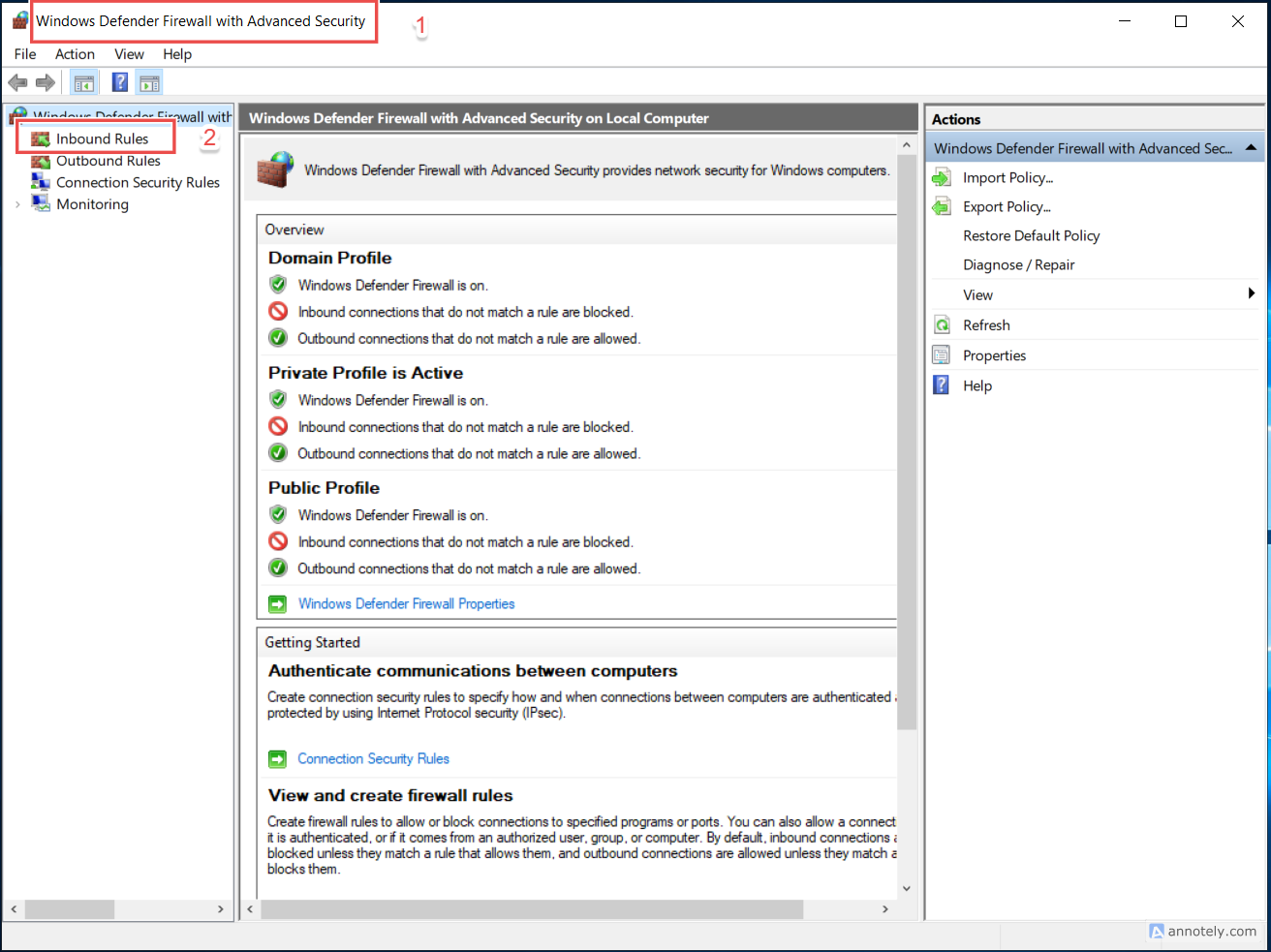
  • Open Windows Defender Firewall

  • Click Advanced settings

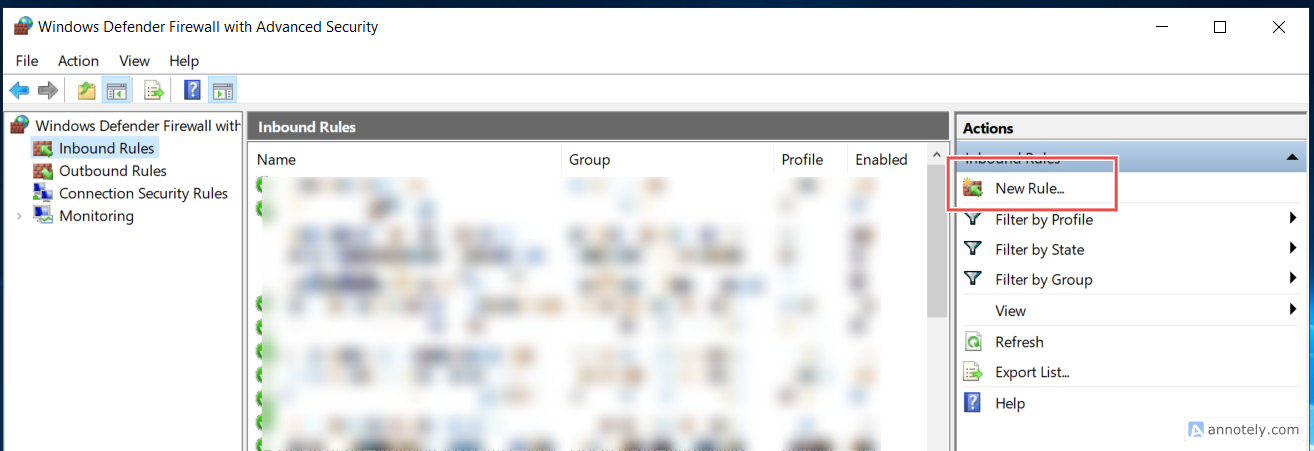
  • Go to Inbound Rules

  • Click New Rule

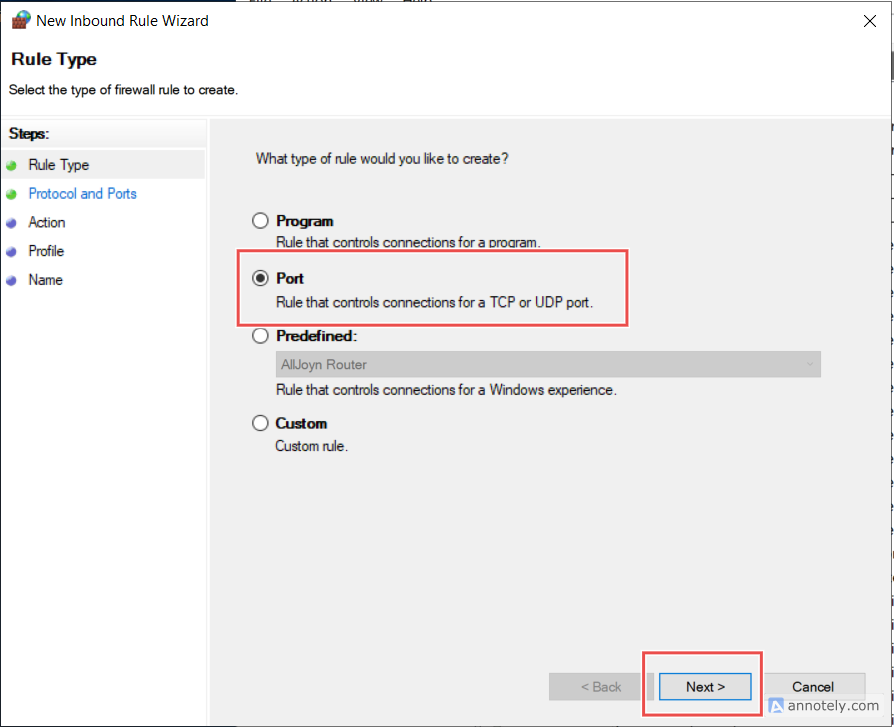
  • Select Port → Next

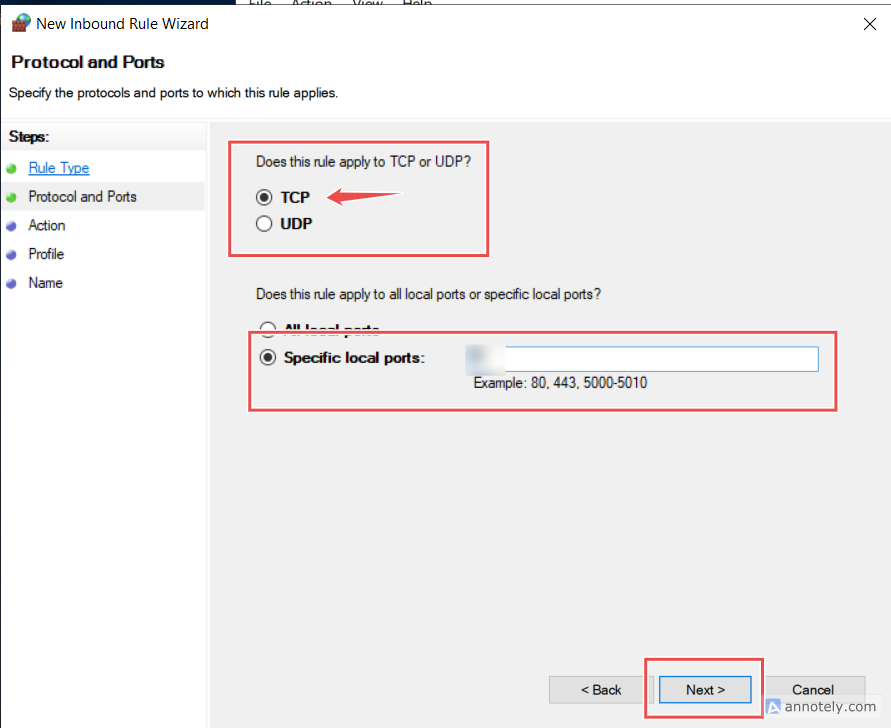
  • Select TCP

  • Enter the new port number

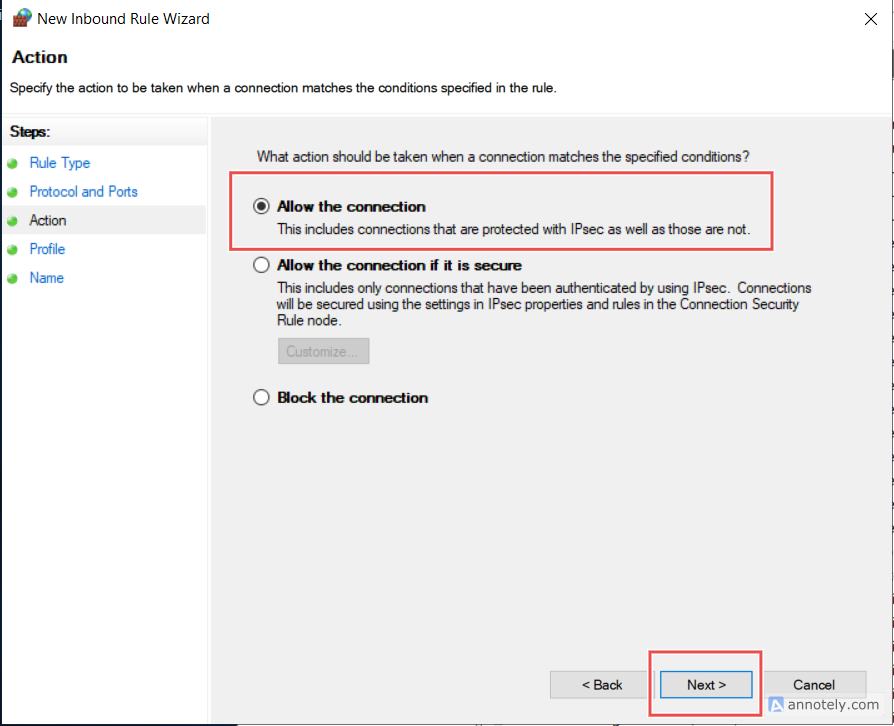
  • Allow the connection

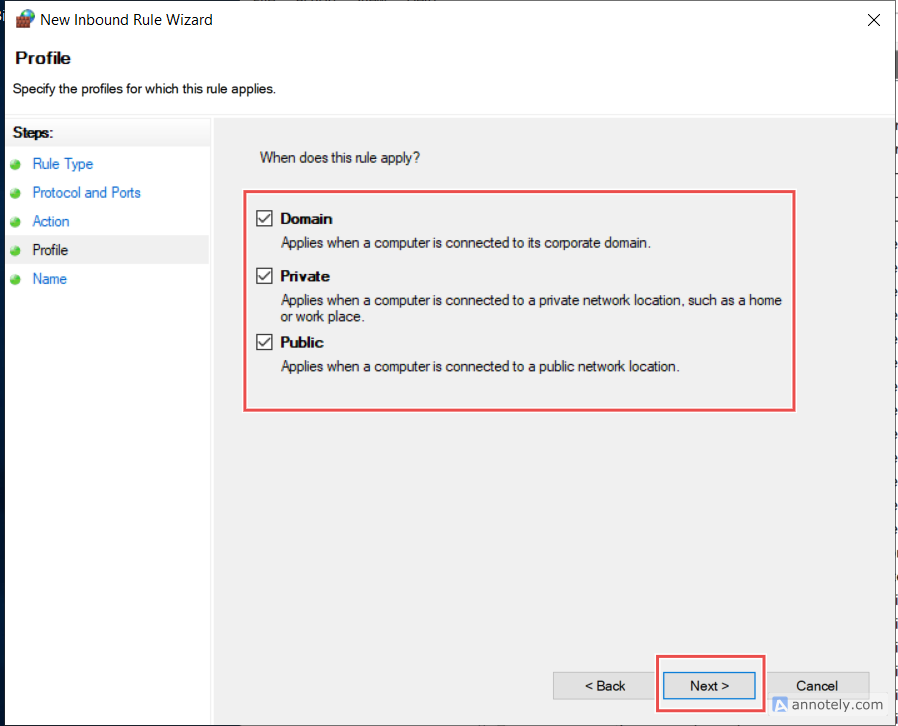
  • Apply to Domain / Private / Public

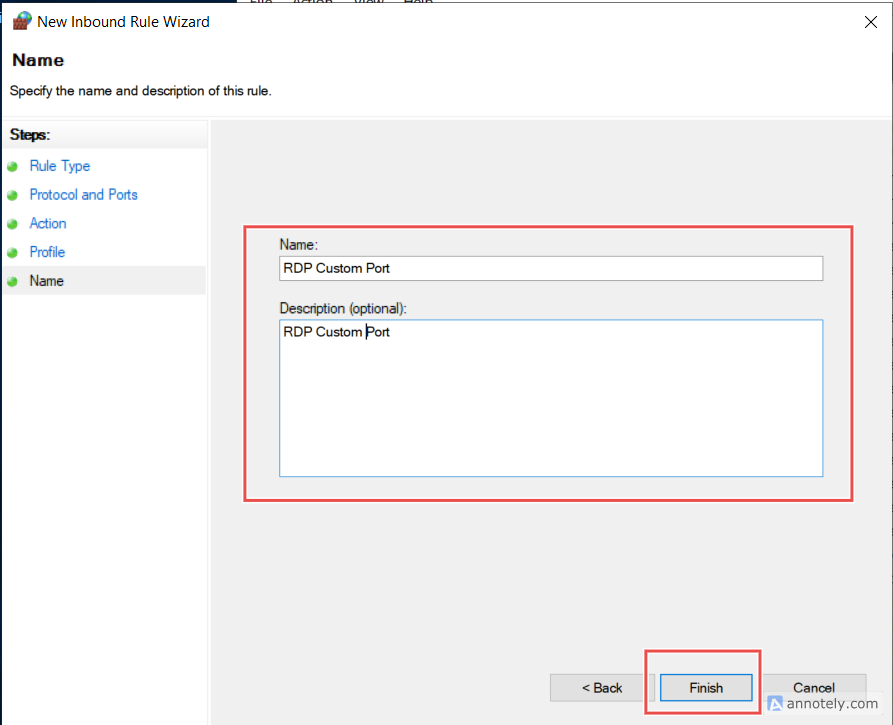
  • Name it:
    RDP Custom Port 3390 (example)

Step 2 : Change RDP Port in Registry

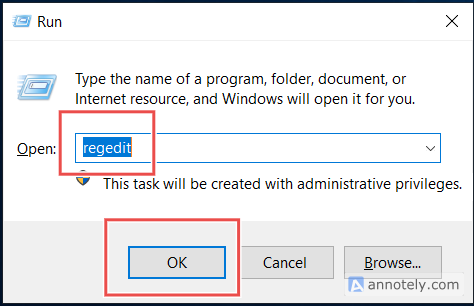
  • Press Win + R → type regedit → Enter

  • Go to: 

HKEY_LOCAL_MACHINE
└ SYSTEM
└ CurrentControlSet
└ Control
└ Terminal Server
└ WinStations
└ RDP-Tcp
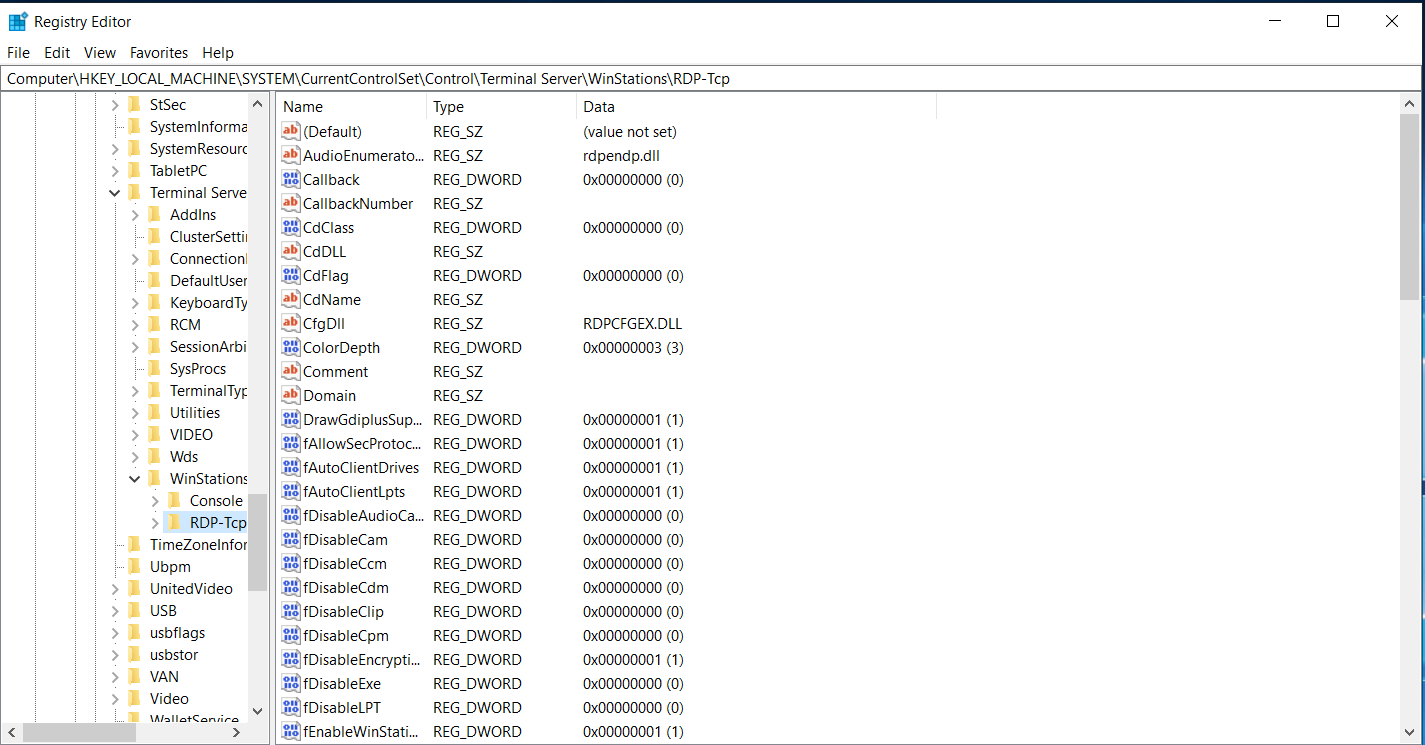
  • In the right pane, double-click PortNumber

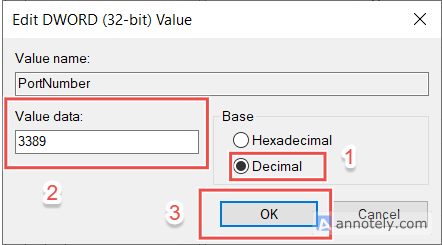
  • Select Decimal

  • Change the port
    Example: 33893390 (or any unused port like 4444, 5566)

  • Click OK and close Registry Editor

Step 3: Restart RDP Service (or Server)

  • Windows VPS, Window VPS Server
  • 0 brukere syntes dette svaret var til hjelp
Var dette svaret til hjelp?

Relaterte artikler

WINDOWS VPS

Need better speed, performace of you website then choose VPS instaed of shared hosting. In VPS...

How to Install Any Browser on Windows Servers

In this video, we will show you how to install any browser on Windows servers. By the end of...

How to change Date and Time in Windows Servers

This video tutorial will show you how to change the date and time in a Windows Server. By...

How to Install DNS and IIS in Windows servers

DNS is a service that helps your computer find the correct IP address when it connects to the...

How to create Database and connect using SQL Management studio

In this video, we are going to cover how to create a database and connect to it using SQL...