
Step 1: Go to myaccount.google.com
Click on Security from the left sidebar
Under "Signing in to Google", ensure 2-Step Verification is turned ON
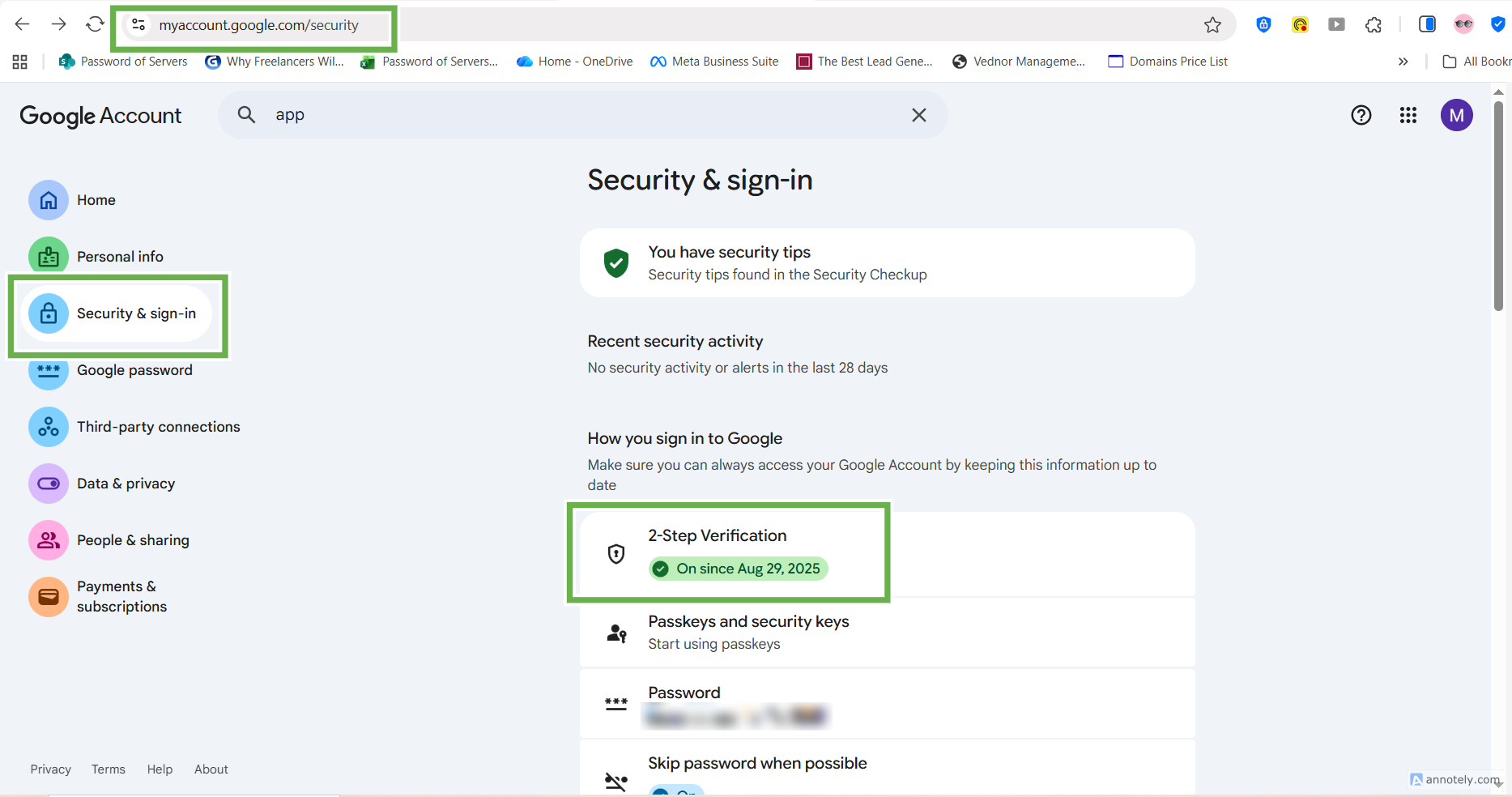
If it’s off, click it and complete the setup first
Step 2: Once 2-Step Verification is active, you’ll see an option for App passwords
Click App passwords
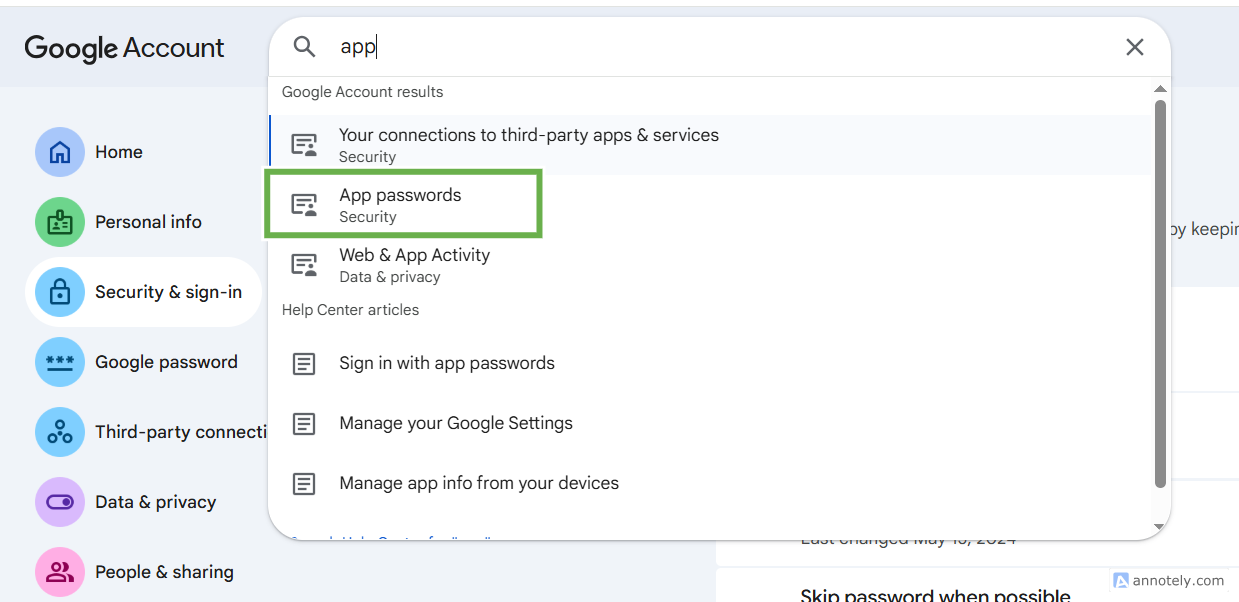
Sign in again if prompted
Step 3: Under Select app, choose your app (e.g., Mail)
Under Select device, choose your device or select Other (Custom name) and type a name (e.g., “Outlook on PC”)
Click Generate
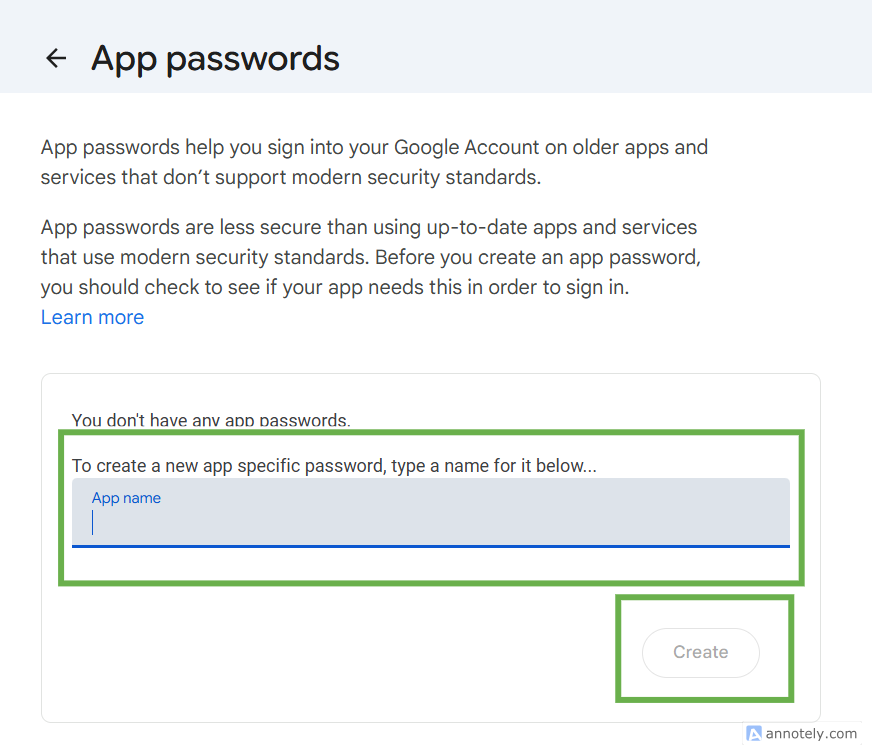
A 16-character app password will appear — copy it
Use this password instead of your Google password in your mail app or SMTP settings